Smart Watch App
-
To setup the Smart Watch application for development, follow these steps:
- Download and install Visual Studio Code
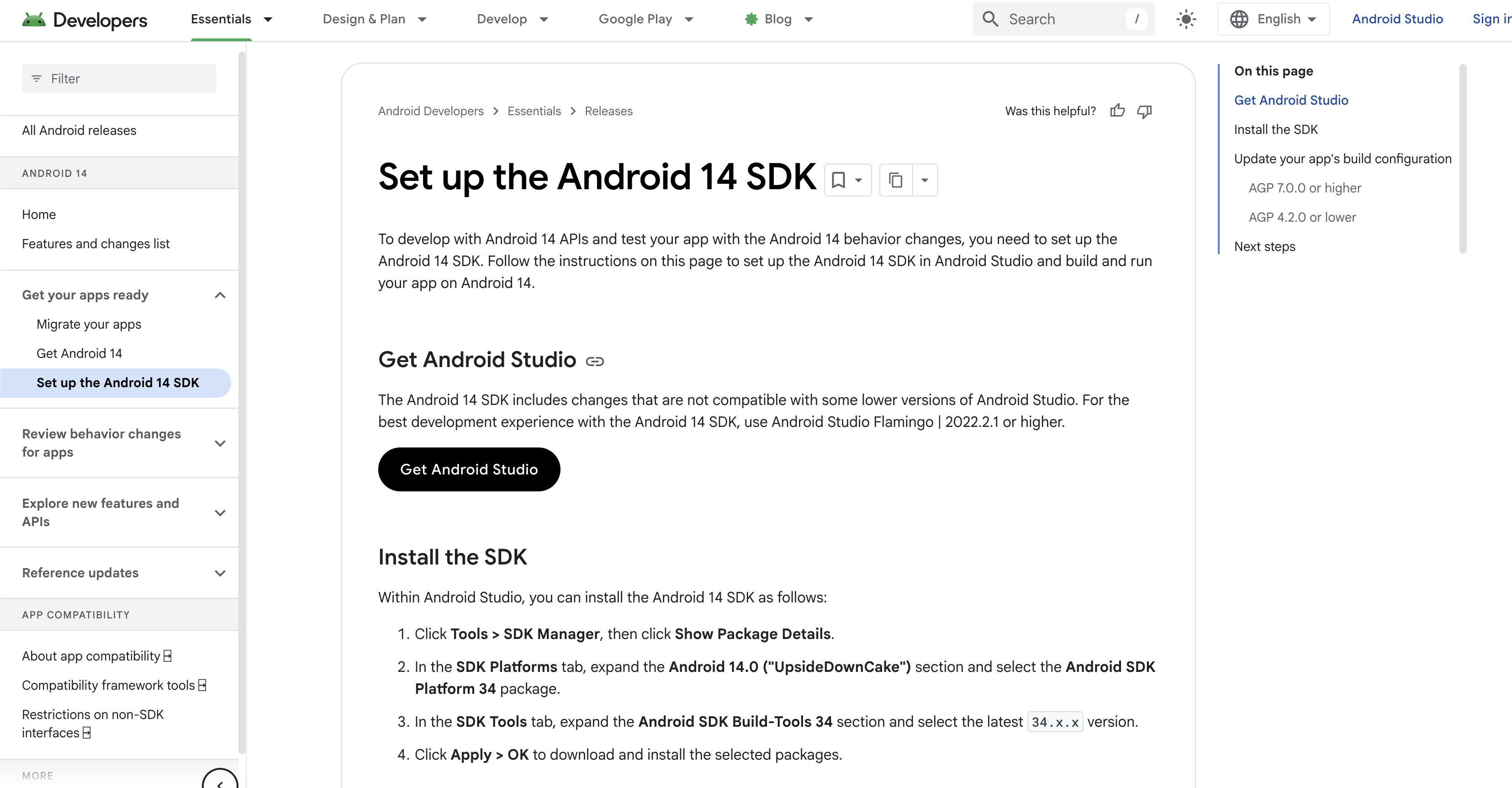
- Install the Flutter SDK version 3.9.2 or higher
- Download from https://flutter.dev/docs/get-started/install
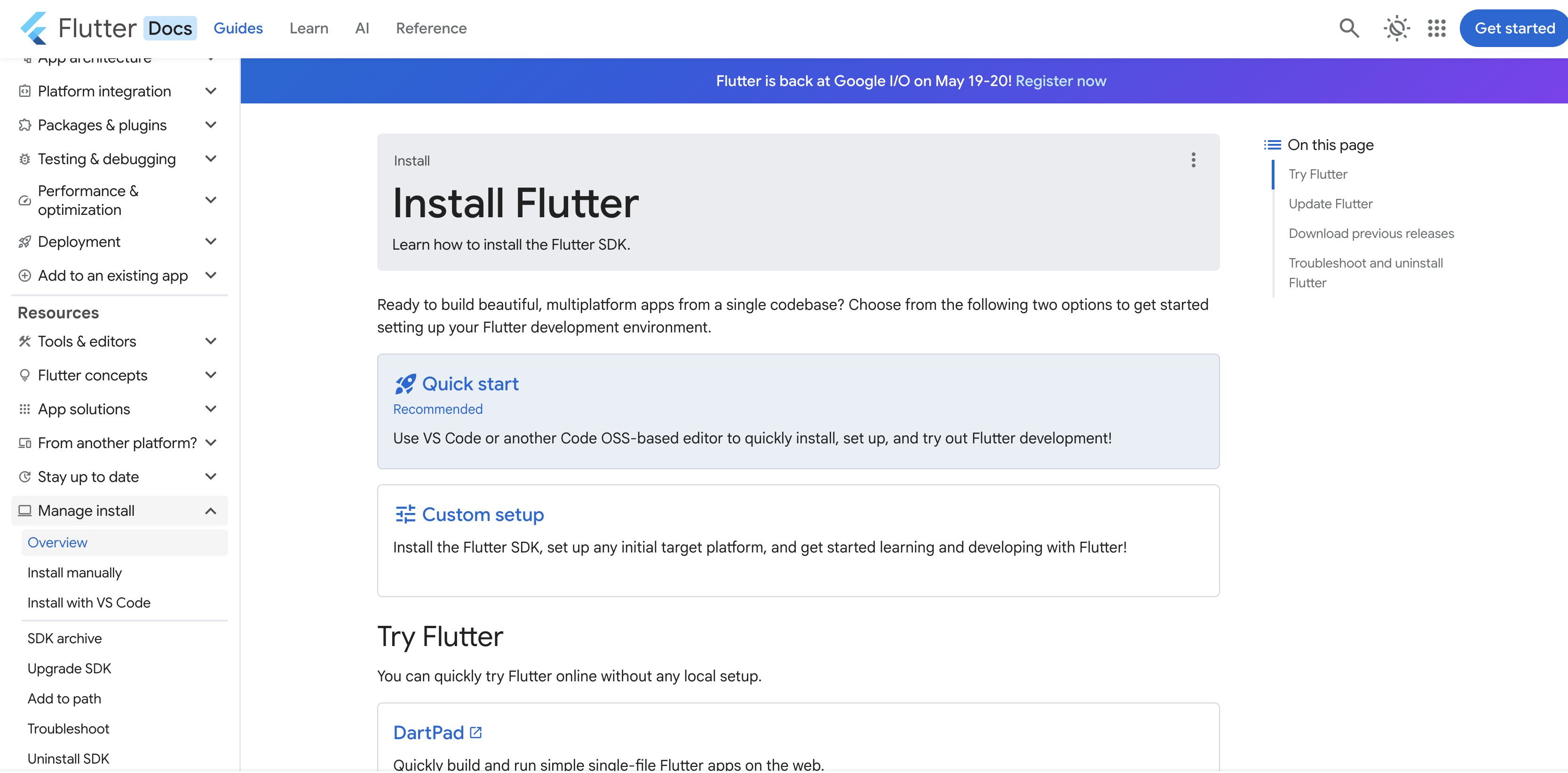
- Download from https://flutter.dev/docs/get-started/install
- Install Dart (this step can be skipped because it comes bundled with the installation of Flutter)
- Instal Android Studio and set up Android SDK (Used for watch emulation)
- Clone the repository for the Watch App: https://github.com/YCP-Rev-Metrix/Android-Smart-Watch.git
- Navigate to the project directory:
- cd flutter_prototype
- Install project dependencies in terminal:
- flutter pub get
- flutter pub run flutter_launcher_icons
- flutter pub run flutter_native_splash:create
You are now ready to develop the Smart Watch Application
-
To deploy the app to an Android Smart Watch, follow these steps:
- On your Android Smart Watch, open the Settings app
- Scroll down to the bottom and select About Watch
- Tap Software Information
- Tap Build Number seven times (this will send you back to the menu of settings)
- Scroll down to the bottom of settings again to find Developer Options now available
- In Developer Options, scroll until you see a section labeled Wireless Debugging
- In Wireless Debuggling, turn this on, this will allow you to pair your development computer to the watch for development itself
- FYI: The Watch and Computer have to be on the SAME wifi to allow wireless debugging!
- Once enabled, scroll down to pair a device and in that menu you should see an IP address and a pairing code
- In your terminal write out this command:
- adb pair xx.xx.xx.xx:xxxxx (replace with the IP address in the pairing menu)
- Once paired, in the initial menu of the wireless debugging there will be another IP address. IMPORTANT: this address is different from the pairing address
- In your terminal write out this command:
- adb connect xx.xx.xx.xx:xxxxx (replace with the new IP address in the wireless debugging page)
- Once connected, write out this command to run on the connected device:
- flutter run
You are now deployed on the Smart Watch!
- flutter run
-
To deploy the app to an Emulator from VScode, follow these steps: (IMPORTANT: Android studio and SDK tools must be downloaded prior for correct use, see section 1)
- In VScode, go to the extensions tab
- In the extensions search bar, search Android/IOS Launcher by “Yovel Ovadia”
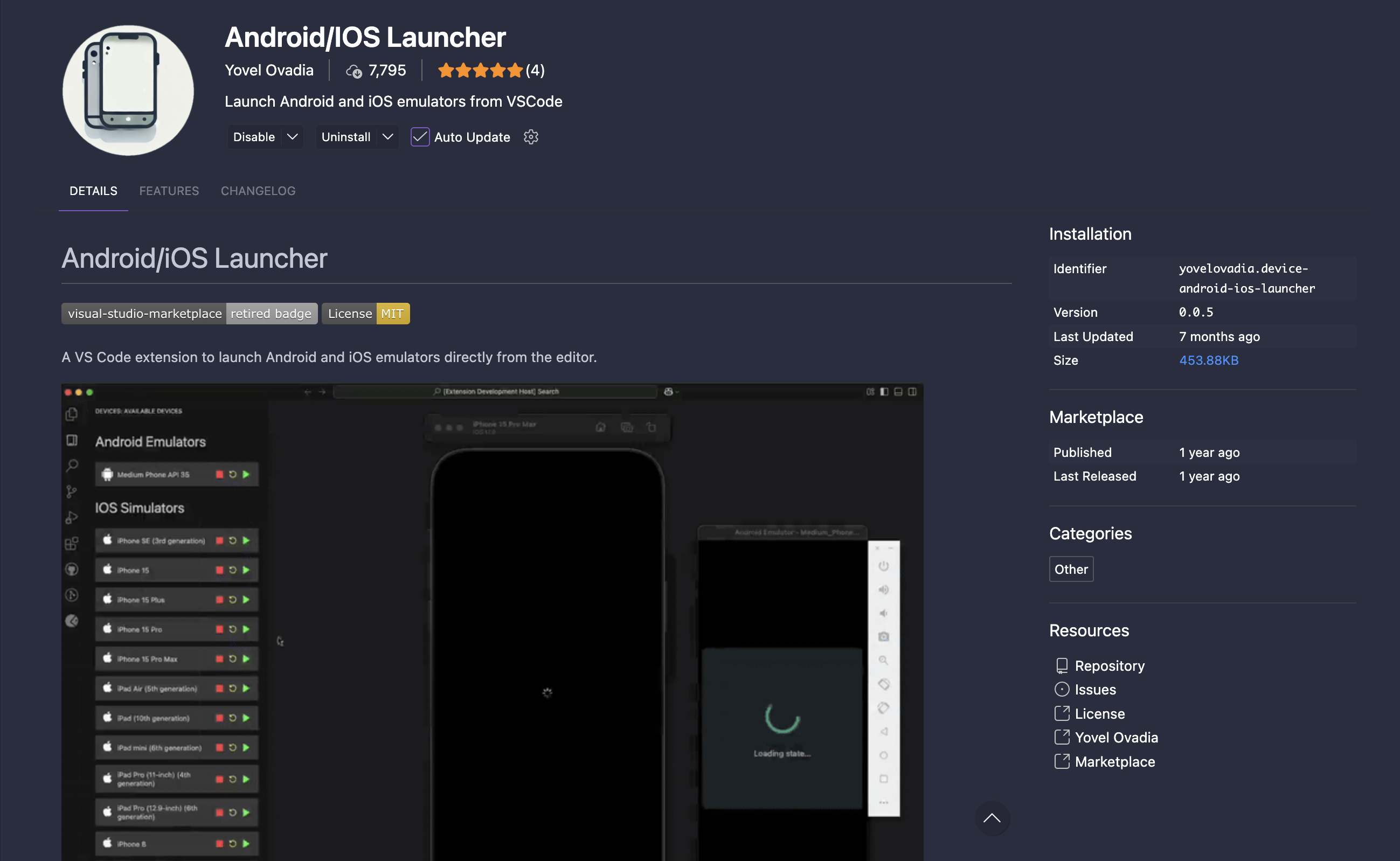
- Once installed and enabled, you will see a phone icon in your left side hotbar
- In this tab, you can run different emulators directly from VScode
- Select the green button for whatver emulator you want to run You are now running the emulator!