Importing Data
Data Import
The mobile app has the ability to import data from CSV files. The tables that are imported are Balls, Establishments, Events, and Linescores (which contains Sessions, Games, Frames, and Shots).
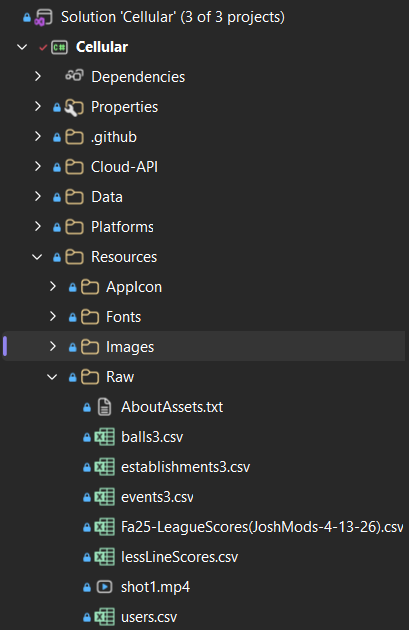
CSV files must be placed in the the following path: Cellular\Resources\Raw.
Below is a screenshot of the Visual Studio Solution Explorer showing the location of the Raw folder.
|  |
|
The following are examples of how each CSV file should be formatted. Not all information in the CSVs are currently imported.
Balls.csv
| User ID | Long Name | Short Name | Brand | Type | Core | Cover | Color | Surface | Year | Serial# | Weight | Mapping |
Establishments.csv
User ID | Long Name | Short Name | Address | Phone Number | Lanes | Type |
Events.csv
The Events import function takes in a user id to link the events to a specific user. | User ID | Long Name | Short Name | Type | Establishment | Season | Team | Composition | Day | Time | StartDate | EndDate | Games | Weeks | Playoffs |
Linescores.csv
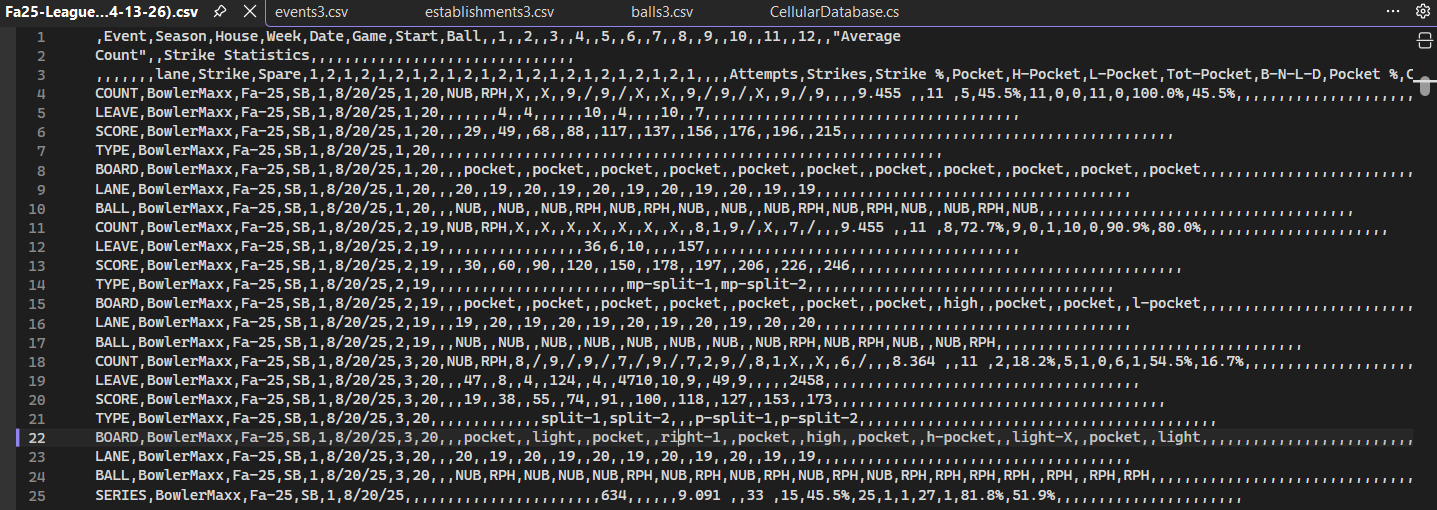
Linescores does not require a User ID in the CSV because it’s contents are linked to Events. Sessions, Games, Frames, and Shots are split into separate 7-Block chunks in the CSV. Each chunk consistes of rows labeled: Count, Leave, Score, Type, Board, Lane, and Ball.
| Row Identifier | League | Season | Week | Date | Game | Start | Strike Ball | Spare Ball | Frame 1 Shot 1 | Frame 1 Shot 2 | Frame 2 Shot 1 | … |
An example of Prof. Hake’s Linescores csv file is shown below.
|  |
|
Changing CSV Files
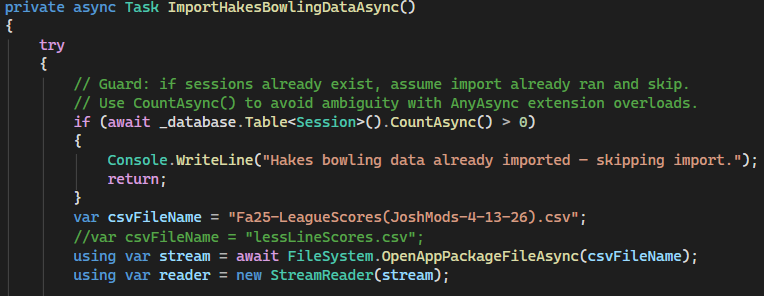
To change a CSV file, simply replace the file in the Raw folder with a new one. You could also add a new one but you will have to change the name in the import functions.
Below is a screenshot of part of the linescores import function showing where the CSV file name is specified.
|  |
|